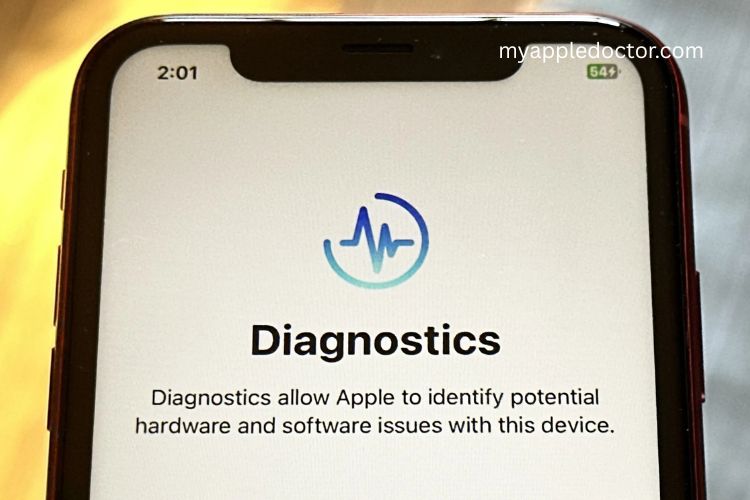
If you are responsible for managing iPhones or iPads in your organization, troubleshooting device issues efficiently is critical. One of the most powerful tools available for diagnosing software and performance problems on iOS devices is Sysdiagnose. This feature allows you to gather detailed logs that can help IT teams, app developers, or AppleCare pinpoint the root cause of issues.
In this guide, you will learn the purpose of using sysdiagnose, how to generate a sysdiagnose log, and how to use it effectively for troubleshooting.
Read More: Master Your iPhone’s Health: A Simple Guide to Running a Diagnostic Test Like a Pro
What is Sysdiagnose?

Sysdiagnose is a built-in diagnostic tool on iPhone and iPad that collects comprehensive information about your device’s performance and software behavior. When you generate a sysdiagnose report, the system captures a detailed snapshot of your device, including active processes, logs, connectivity data, and other technical details.
This log file becomes a valuable resource for IT teams, app developers, or Apple engineers, as it provides insights into issues such as:
- Software crashes or app malfunctions
- Connectivity problems, including Wi-Fi, Bluetooth, or cellular issues
- Performance degradation, slow operations, or unexpected behavior
By using sysdiagnose, organizations can streamline troubleshooting, reduce device downtime, and provide precise information to AppleCare or internal developers to resolve issues efficiently.
Why Use Sysdiagnose on iPhone or iPad?

Sysdiagnose is essential when you need to investigate complex or persistent issues that cannot be resolved through standard troubleshooting methods. Here are the main benefits of using sysdiagnose:
- Accurate Issue Identification: The logs provide detailed information that helps pinpoint the exact cause of software or performance issues.
- Support for Developers and IT Teams: Developers can analyze logs to fix app bugs, while IT teams can resolve device problems more effectively.
- Streamlined Communication with AppleCare: When contacting Apple support, sysdiagnose logs allow engineers to understand the problem quickly, reducing back-and-forth communications.
- Comprehensive Troubleshooting: From connectivity errors to system crashes, sysdiagnose captures a wide range of data, giving a holistic view of your device’s health.
In short, sysdiagnose acts as an advanced diagnostic assistant, helping both professionals and everyday users troubleshoot iOS devices more efficiently.
How to Generate a Sysdiagnose Log on iPhone or iPad
Generating a sysdiagnose log is simple but requires following the correct procedure. Here’s a step-by-step guide:
Triggering Sysdiagnose:
Press and hold the Volume Up, Volume Down, and Power buttons simultaneously for a few seconds.
The screen will briefly flash, indicating that the sysdiagnose process has started.
Wait for Completion:
The process runs in the background and may take a few minutes to collect all necessary data. You can continue using your device while the sysdiagnose runs.
Locate the Log File:
Once complete, the log file is saved on your device. You can access it via iTunes, Finder (for macOS), or by using a configuration profile if you are in an enterprise environment.
Share the Log File:
You can send the file to your IT team, an app developer, or AppleCare for analysis. Typically, these files are compressed into a ZIP format to make sharing easier.
Understanding Sysdiagnose Log Contents
The sysdiagnose log is not just a simple text file. It includes a wide variety of diagnostic data, such as:
- Crash Logs: Records of app or system crashes, including error codes and memory usage at the time of the crash.
- Performance Metrics: CPU, memory, and battery usage patterns to help identify performance bottlenecks.
- Connectivity Logs: Details about Wi-Fi, Bluetooth, and cellular network performance.
- System Configuration: Information about the device’s hardware, installed apps, and system settings.
By reviewing these logs, technical teams can analyze patterns, detect anomalies, and provide solutions with precision.
Practical Use Cases for Sysdiagnose
Sysdiagnose is versatile and can be used in various scenarios, including:
- Troubleshooting Software Crashes: Developers can identify why a particular app crashes on certain devices.
- Connectivity Problem Resolution: IT teams can diagnose why devices fail to connect to Wi-Fi, Bluetooth, or corporate VPNs.
- Performance Optimization: Analysis of sysdiagnose logs can reveal apps or processes consuming excessive resources.
- Enterprise Device Management: Companies can maintain smooth operation of multiple devices by proactively monitoring sysdiagnose logs.
Using sysdiagnose in these scenarios saves time, reduces frustration, and ensures devices remain productive and reliable.
Tips for Using Sysdiagnose Effectively
To maximize the benefits of sysdiagnose, follow these best practices:
- Collect Logs During the Issue: Always generate a sysdiagnose log when the problem occurs to ensure relevant data is captured.
- Keep Logs Organized: Label and timestamp logs for easy reference, especially in enterprise environments managing multiple devices.
- Share Securely: Use secure methods to share sysdiagnose logs since they contain sensitive device information.
- Combine with Other Tools: Pair sysdiagnose with tools like Apple Diagnostics or System Information for a complete troubleshooting approach.
These strategies help ensure sysdiagnose is not just a log collector but a powerful tool for actionable insights.
Sysdiagnose vs Other Diagnostic Tools
While sysdiagnose is highly detailed, it works best in conjunction with other iOS diagnostic tools:
- Apple Diagnostics: Useful for testing hardware components and identifying hardware failures.
- System Information: Provides detailed system configurations, installed software, and device specifications.
- Console Logs: Captures real-time log data for developers during app testing.
Together, these tools provide a comprehensive troubleshooting ecosystem, helping technical teams resolve issues faster and more accurately.
Frequently Asked Questions:
What is Sysdiagnose, and why should I use it?
Sysdiagnose is a diagnostic tool on iPhone and iPad that collects detailed system and performance logs. It helps troubleshoot software crashes, connectivity issues, and performance problems by providing technical insights for IT teams, developers, or AppleCare.
How do I generate a Sysdiagnose log on my device?
Press and hold the Volume Up, Volume Down, and Power buttons simultaneously for a few seconds. The screen flashes, indicating that the sysdiagnose process has started. Once complete, the log file is saved on your device.
Who can analyze the Sysdiagnose log?
Sysdiagnose logs are primarily used by IT teams, app developers, and AppleCare engineers to identify the root cause of device or app issues.
Where is the Sysdiagnose log file saved?
The log is stored on your device and can be accessed via Finder (macOS), iTunes, or a configuration profile in enterprise setups. The file is typically compressed into a ZIP format for easier sharing.
Can I use Sysdiagnose for hardware issues?
Sysdiagnose focuses on software and system-level diagnostics. For hardware tests, tools like Apple Diagnostics or System Information are more suitable.
Is it safe to share Sysdiagnose logs?
Yes, but be cautious. Logs contain detailed device information, so always use secure methods when sending files to IT teams or Apple support.
How long does it take to generate a Sysdiagnose file?
The process usually takes a few minutes. You can continue using your device while the logs are being collected.
Conclusion
Mastering Sysdiagnose on your iPhone or iPad empowers you to unlock deep insights into your device’s performance and functionality. By generating and analyzing sysdiagnose logs, IT teams, app developers, and AppleCare engineers can quickly identify the root causes of software crashes, connectivity issues, and performance slowdowns. This powerful tool not only streamlines troubleshooting but also enhances device reliability and user experience. Whether you’re managing multiple devices in an organization or debugging apps, leveraging sysdiagnose ensures ultimate control and a proactive approach to maintaining peak device performance.