Upgrading to a new iPhone, like the iPhone 15, is exciting, but transferring all your data from your old device can be a hassle. Photos, videos, contacts, WhatsApp messages, and other files need to move safely to the new phone. Thankfully, syncing iPhones is easier than ever. Whether you want to back up your data, share files with friends, or switch to a new iPhone without losing anything, this guide covers all the ways to sync iPhone to iPhone efficiently.
From traditional methods like iCloud and iTunes to faster, safer tools like AnyTrans and PhoneTrans, you’ll discover the easiest ways to transfer your data without losing important files.
Read More: Take Full Control: Protect Your Privacy and Decide Which Apps Sync and Store Your Data on iCloud
Why Syncing iPhone to iPhone Matters
Syncing your iPhone ensures all your essential data moves to your new device seamlessly. Many iPhone users upgrade every year, and without proper syncing, files can get lost or overwritten. Syncing is also useful for backing up your data on a second iPhone or sharing files with friends and family.
The main challenge is transferring all types of data—photos, videos, contacts, messages, WhatsApp chats, and apps—without erasing existing files on the new device. Using the right tools can save you time and prevent data loss.
Can You Sync Two iPhones Together?
Yes, you can sync two iPhones together. Apple offers solutions like iCloud, Quick Start, and iTunes for syncing, but these methods often have limitations. iCloud requires the same Apple ID and can overwrite data, while iTunes may erase certain files during the process.
Third-party tools like AnyTrans and PhoneTrans provide faster, safer alternatives. They allow selective or full data transfer, maintain original file quality, and support all iPhone models and iOS versions.
How to Sync iPhone to iPhone without Data Loss
Syncing iPhones without losing data is crucial, especially if you have important photos, messages, or app data. Here are the top two tools for seamless iPhone syncing:
AnyTrans – One-Click iPhone Sync
AnyTrans is a professional iOS data manager that simplifies iPhone migration. It supports photos, videos, contacts, WhatsApp messages, apps, and more. Unlike iTunes or iCloud, it won’t erase or overwrite existing data.
Key Features of AnyTrans:
- Transfer all data from an old iPhone to a new one in one click.
- Fast transfer speed, saving valuable time.
- Supports all iPhone models and iOS versions.
- Works without using the same Apple ID.
How to Use AnyTrans:
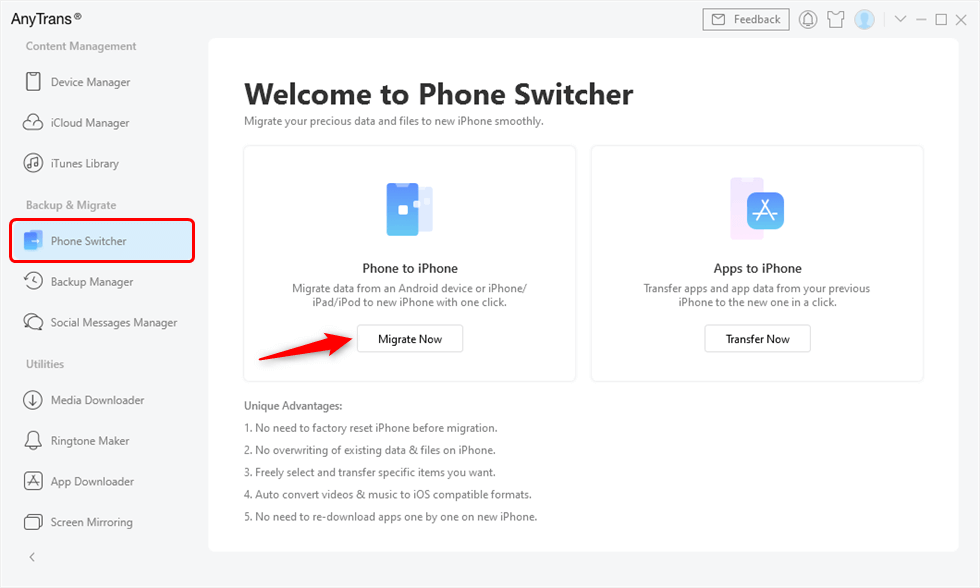
- Download and launch AnyTrans on your Mac or Windows PC. Connect both iPhones via USB.
- Select Phone Switcher > Phone to iPhone.
- Choose the source and target devices, then click Next.
- Select the categories to sync (photos, videos, messages, etc.) and click Next.
You can also transfer data selectively:
- Open Device Manager in AnyTrans.
- Select the files you want (e.g., photos) and click Send to Device.
- AnyTrans ensures a smooth, quick, and safe transfer without overwriting your existing data.
PhoneTrans – Efficient iPhone Transfer
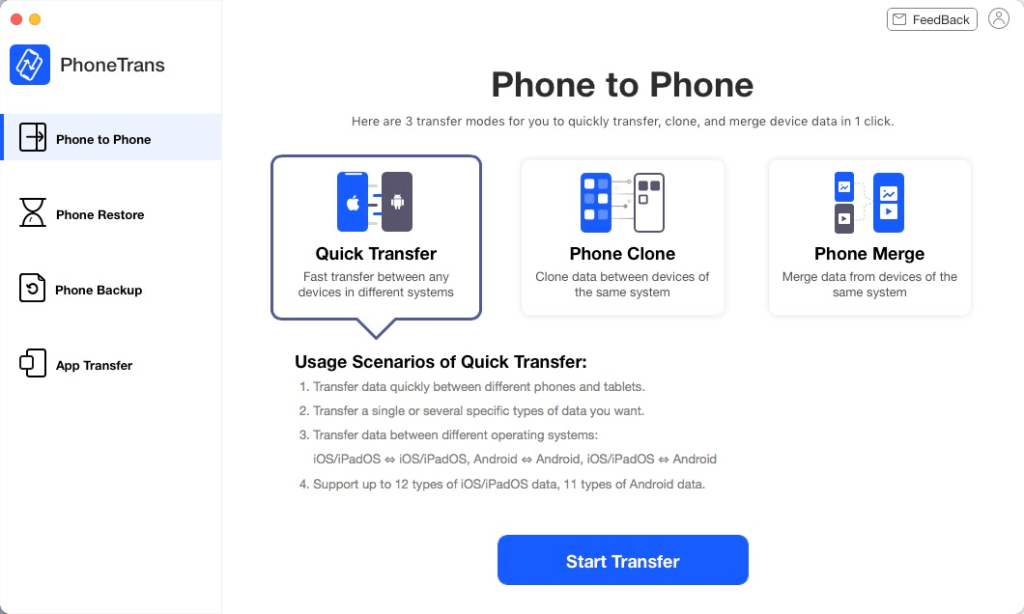
PhoneTrans offers three options for syncing iPhones:
- Quick Transfer – Sync selectively or fully.
- Clone Phone – Exact 1:1 clone of your old iPhone.
- Merge Phone – Combine old and new data while removing duplicates.
How to Use PhoneTrans:
- Download PhoneTrans and connect both iPhones. Select Phone to Phone.
- Choose Quick Transfer to sync files selectively or entirely.
- Follow the on-screen instructions. Once completed, your data will appear on the new iPhone.
- PhoneTrans preserves original file quality and ensures no data on the new iPhone is overwritten.
How to Sync iPhone to iPhone with iCloud
iCloud allows you to backup and restore iPhone data, but it comes with limitations: a stable network is required, it takes time, and you cannot selectively transfer files. Restoring an iCloud backup will overwrite existing data on the new iPhone.
Steps to Sync with iCloud:
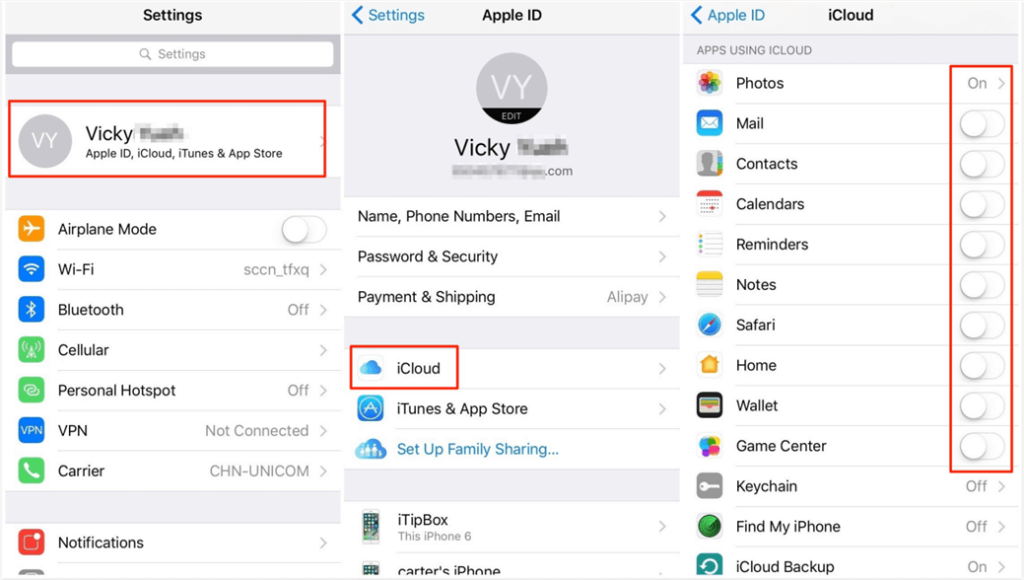
- Log into the same Apple ID on both iPhones.
- Open Settings on the old iPhone, tap your Apple ID, and go to iCloud.
- Turn on the data types you want to sync.
- Repeat on the new iPhone and select Merge.
- Your selected data categories will transfer from one iPhone to another automatically.
How to Sync iPhone to iPhone with Quick Start
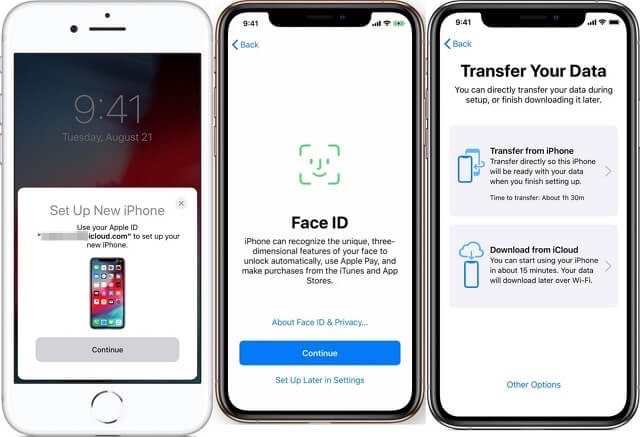
Quick Start is an iOS feature designed to speed up iPhone setup. It works for iPhones running iOS 11 or later and requires devices to be close together.
Steps to Use Quick Start:
- Place your new iPhone near the old one.
- Enable Bluetooth if prompted and scan the animation on the new iPhone.
- Enter your Apple ID password.
- Set up Touch ID or Face ID on the new iPhone.
- Choose to restore from iCloud or iTunes backup.
- Quick Start transfers data, settings, and apps efficiently without complex steps.
How to Sync iPhone to iPhone with iTunes
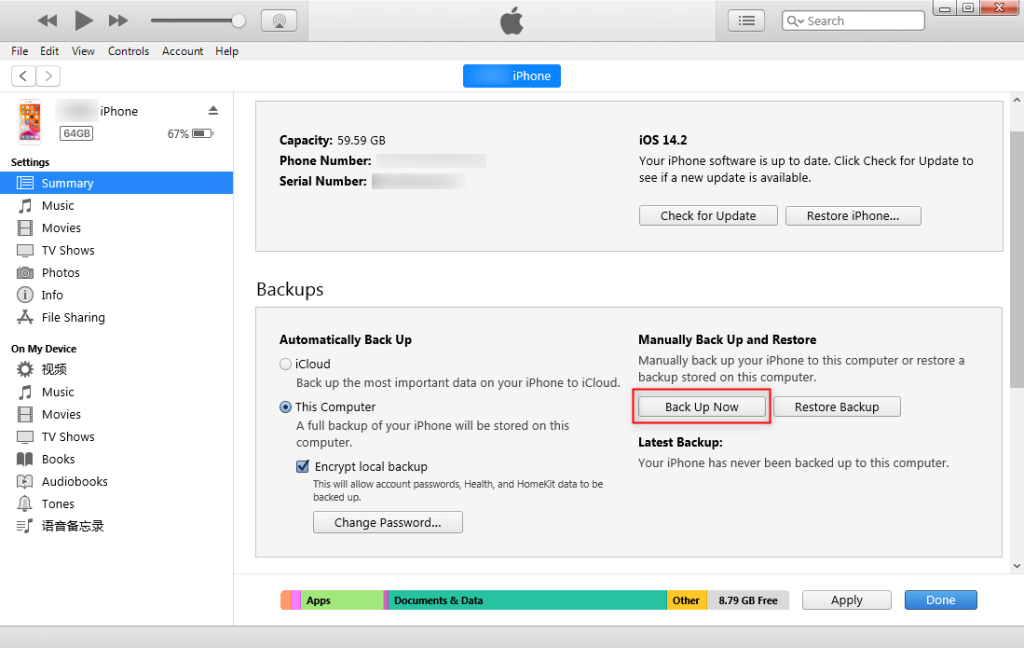
iTunes allows syncing through backup and restore, but it may overwrite data and supports only limited file types.
Steps to Sync with iTunes:
- Backup old iPhone: Connect the old iPhone to the computer, open iTunes, select the device, go to Summary > Back Up Now.
- Restore new iPhone: Connect the new iPhone, go to Summary > Restore Backup, and select the latest backup.
- Check device: Once the restore completes, unplug the new iPhone and verify the data.
How to Sync iPhone to iPhone with WiFi
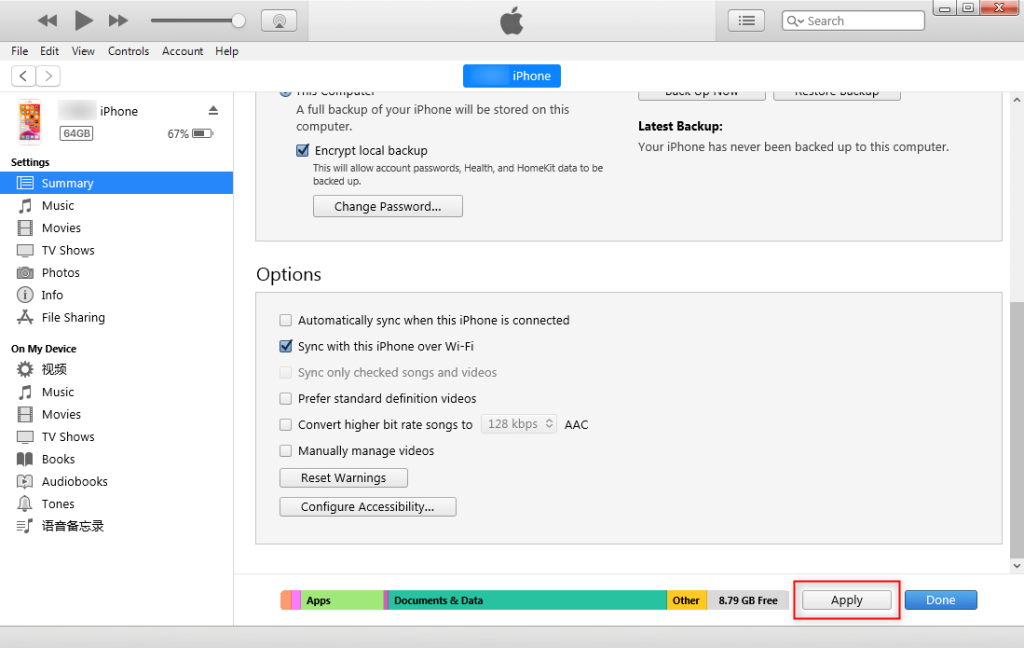
iTunes also supports WiFi syncing, making cable-free transfer possible.
Steps to Sync via WiFi:
- Connect iPhone to a computer and open iTunes.
- Select the device, go to Summary, and enable Sync with this iPhone over WiFi.
- Once both the computer and iPhone are on the same WiFi network, the iPhone will automatically sync whenever it’s charging and iTunes is open.
- WiFi syncing is convenient for regular backups and data updates without connecting a USB cable.
The Bottom Line
Syncing iPhones is essential for a smooth transition to a new device or sharing data across devices. While iCloud, Quick Start, and iTunes provide traditional options, AnyTrans and PhoneTrans offer faster, safer, and more flexible solutions.
Among all methods, AnyTrans stands out for its speed, ease of use, and zero risk of data loss. It can also transfer data between iPhone, iPad, iPod, and even Android devices, making it a versatile tool for all your syncing needs.
Upgrade your iPhone and sync your data safely—download AnyTrans or PhoneTrans today and enjoy a seamless transfer experience.
Frequently Asked Questions:
What is the easiest way to sync iPhone to iPhone?
The fastest and safest way is using tools like AnyTrans or PhoneTrans, which allow one-click transfers without overwriting existing data. Traditional methods like iCloud and iTunes also work but are slower and less flexible.
Can I sync two iPhones with different Apple IDs?
Yes! Tools like AnyTrans support syncing iPhones with different Apple IDs, making it simple to transfer data even between devices that aren’t connected to the same account.
Will syncing erase data on my new iPhone?
Not if you use third-party tools like AnyTrans or PhoneTrans, which preserve all existing data. Methods like iTunes and iCloud may overwrite or erase files, so backup first if you choose those.
What types of data can I sync between iPhones?
You can sync photos, videos, contacts, messages, WhatsApp chats, apps, and more. Tools like AnyTrans cover nearly all data types, ensuring nothing is left behind.
Do I need a computer to sync iPhones?
For iTunes, AnyTrans, or PhoneTrans, a computer is required. However, iCloud and Quick Start allow syncing directly between iPhones without a computer, though they may have limitations in speed and data selection.
Can I selectively transfer certain files?
Yes! Both AnyTrans and PhoneTrans allow you to preview and choose exactly which files to transfer, giving you full control over your data.
How long does it take to sync iPhones?
The duration depends on the amount of data and method used. One-click tools like AnyTrans are much faster than iCloud or iTunes, completing transfers in minutes instead of hours.
Conclusion
Syncing your iPhone to a new device doesn’t have to be complicated or risky. Whether you choose traditional methods like iCloud, Quick Start, or iTunes, or faster, safer tools like AnyTrans and PhoneTrans, transferring your photos, videos, messages, apps, and other important data can be seamless. For the most efficient and secure experience, AnyTrans stands out with one-click transfers, selective syncing, and zero risk of data loss. It works across all iPhone models and even supports transfers from Android devices, making it a versatile solution for every user.