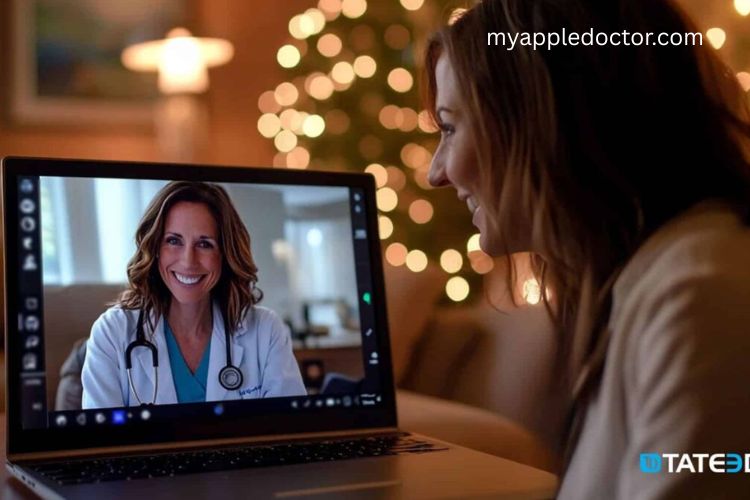
Telehealth has transformed healthcare by making medical consultations more convenient and accessible than ever. Abby Health’s telehealth service offers patients the ability to connect with healthcare providers from the comfort of their home. However, ensuring a smooth and productive session requires using compatible devices and browsers. In this guide, we’ll walk you through everything you need to know to make the most of your telehealth appointments.
Why Device Compatibility Matters for Telehealth
Telehealth relies heavily on video and audio quality. Using an outdated device or unsupported browser can lead to technical issues, such as choppy video, poor audio, or failed connections. Abby Health ensures its platform works on most modern devices, but understanding compatibility can save time, reduce stress, and make your consultations more effective.
Supported Devices for Abby Health Telehealth
Abby Health’s telehealth platform is designed to be user-friendly and accessible across multiple devices. Here’s a breakdown of supported devices:
iPhones and iPads
Abby Health supports iPhones and iPads running iOS 12 or later. Apple devices are known for their reliability and smooth video performance. Using the Safari browser on these devices ensures that you can access all features of the telehealth platform without interruption.
Android Smartphones and Tablets
Android users can access Abby Health’s telehealth services on devices running Android 8 or later. For the best experience, using Google Chrome is recommended. Android devices offer flexibility and wide accessibility, making it easy for most users to join a telehealth session.
Laptops and Desktop Computers
Desktop and laptop users can access Abby Health through modern browsers such as Chrome, Safari, or Microsoft Edge. Whether you are using Windows or macOS, a computer with a working microphone, camera, and stable internet connection ensures a seamless consultation.
Best Web Browsers for Telehealth Calls
Choosing the right web browser is just as important as choosing the right device. Abby Health’s platform is optimized for the following browsers:
Google Chrome
Recommended for Windows, Mac, and Android users, Google Chrome provides excellent video quality and a reliable connection. Chrome’s frequent updates and security features also protect your personal health information.
Safari
If you are using an iPhone, iPad, or Mac, Safari is the ideal choice. The browser is optimized for Apple devices and ensures smooth video calls without lag or interruptions.
Microsoft Edge
For Windows users, Microsoft Edge offers good compatibility with Abby Health’s telehealth platform. While not as commonly used as Chrome, Edge provides stable performance and security for online consultations.
Browsers and Devices to Avoid
Avoid using Internet Explorer or any outdated browsers. Older devices with low processing power may also struggle to support video calls, leading to technical difficulties and frustration.
Tips for a Smooth Telehealth Experience
A few simple preparations can dramatically improve your telehealth sessions:
Check Your Internet Connection
A stable, high-speed internet connection is essential. Video calls require more bandwidth than typical browsing, so ensure you have a reliable Wi-Fi network or sufficient mobile data.
Test Your Microphone and Camera
Before your appointment, verify that your microphone and camera are functioning. Clear audio and video allow your provider to better assess your condition and provide accurate advice.
Update Your Device and Browser
Always use the latest software updates on your device and browser. Updates often include performance improvements and security patches, ensuring a safer and smoother telehealth experience.
Choose a Quiet, Well-Lit Space
To maximize communication, conduct your telehealth session in a quiet room with good lighting. This reduces distractions and allows your provider to see and hear you clearly.
Advantages of Using Abby Health Telehealth
Using Abby Health’s telehealth platform offers several key benefits:
- Convenience: Attend appointments from home or work without the need to travel.
- Accessibility: Connect with providers across different locations, ideal for those in rural areas.
- Efficiency: Save time by avoiding waiting rooms and long commutes.
- Safety: Reduce exposure to illnesses by consulting from a safe environment.
By ensuring your device and browser are compatible, you can fully enjoy these benefits without interruptions or technical difficulties.
Troubleshooting Common Telehealth Issues
Even with the right device and browser, occasional issues may arise. Here are solutions to common problems:
- Poor Video Quality: Check your internet connection and switch to a higher bandwidth network if possible.
- Audio Problems: Ensure your microphone is unmuted and that the volume is appropriately set.
- Connection Drops: Close other applications using your internet bandwidth or restart your device before the session.
- Browser Errors: Clear cache and cookies, or try switching to a recommended browser such as Chrome or Safari.
Preparing for Your Telehealth Appointment
Preparation is key to a successful consultation. Consider the following steps:
- List Your Symptoms and Questions: Write down your concerns to discuss with your provider.
- Have Medications on Hand: Keep a list of current medications to provide accurate information.
- Gather Relevant Health Records: Having previous test results or medical history available helps your provider make informed decisions.
- Minimize Distractions: Notify household members about your appointment time and create a quiet space for the consultation.
These steps ensure that your telehealth visit is productive, efficient, and stress-free.
Frequently Asked Questions:
Which devices are compatible with telehealth services?
Telehealth services work best on iPhones, iPads (iOS 12 or later), Android smartphones and tablets (Android 8 or later), and most modern laptops and desktop computers.
What web browsers are recommended for telehealth calls?
Google Chrome is ideal for Windows, Mac, and Android users. Safari works best on iPhones, iPads, and Macs. Microsoft Edge is suitable for Windows devices. Avoid Internet Explorer and outdated browsers.
Can I use older devices for telehealth appointments?
Older devices may not fully support video calls. For the best experience, use devices that meet minimum system requirements and updated browsers.
How can I ensure my telehealth session runs smoothly?
Ensure your device has a working camera, microphone, and stable internet connection. Conduct sessions in a quiet, well-lit space and close unnecessary apps.
What should I do if I experience technical issues during a telehealth call?
Check your internet connection, update your browser or device, and try restarting the device. If problems persist, contact your telehealth provider for support.
Are there any devices or browsers I should avoid?
Yes. Avoid using Internet Explorer, outdated browsers, and devices with low processing power, as they may cause interruptions during your call.
Is a high-speed internet connection necessary for telehealth?
Yes. A stable, high-speed internet connection ensures clear video and audio for a seamless consultation experience.
Conclusion
Choosing the right device and browser is essential for a smooth, stress-free telehealth experience. Abby Health’s platform is designed to work seamlessly on iPhones, iPads, Android devices, and modern computers when paired with recommended browsers like Chrome, Safari, or Microsoft Edge. By ensuring your equipment is up-to-date, testing your microphone and camera, and preparing a quiet, well-lit space, you can enjoy efficient and reliable consultations from the comfort of your home. With a little preparation, telehealth becomes a convenient, safe, and effective way to stay connected with healthcare providers anytime, anywhere.